How to translate text in an image on your PC, even offline
Translate the text in an image or screenshot on Windows: with Google Translate in the browser, or offline with text recognition and a local translator.
Translating the text in an image takes two steps: first the text in the image is recognized (OCR), then it is translated. Google Translate does both at once: open translate.google.com, select the Images tab at the top, set the languages and pick the image with Browse your computer. The image is uploaded to Google to do that.
If the image should stay on your PC, say because it shows a contract, a medical letter or an account number, you need both steps to run locally. Celerando does that: you draw a frame around the text, text recognition puts it on the clipboard, and the translator translates it on your computer. This guide covers both ways and what to do when the result is wrong.
Translate text in an image with Google Translate
This is how Google describes it on a computer:
- Open translate.google.com in your browser.
- Select the Images tab at the top.
- Under From, choose the source language or select Detect language. Under To, choose the language you want.
- Click Browse your computer and choose the image.
Google shows the translation in the image. Show original puts the original next to it, Copy text copies the translation, Download translation saves the translated image, and Clear starts over.
Where this falls short
- The image is uploaded. Recognition and translation happen at Google, not on your PC. For a photo of a menu that doesn’t matter; for a scanned lease or a lab report it often does.
- No internet, no translation. On a train, on a locked-down company network or in airplane mode, the tab stays empty.
- You need an image file. Text that is only on your screen, in a slide deck, a paused video or a program window, has to be saved as a screenshot and uploaded first.
- Small or decorative type. Google itself notes that small, unclear or stylized text may not be translated correctly.
Translate text in an image offline with Celerando
Celerando is a Windows app that handles both steps on your PC. Text recognition uses Tesseract 5, and the translator uses the TranslateGemma model, which sits on your drive after a one-time download. From then on Celerando translates without an internet connection, and neither the image nor the recognized text leaves the computer.
The difference from uploading: Celerando works on whatever is visible on your screen. The image only has to be open, in any program: the Photos app, a PDF reader, the browser, a slide deck or a video call.
Step by step
- Install Celerando. The installer is signed and needs no admin rights and no account.
- Set up the translator once. Celerando downloads the translation model, about 2.5 GB in the standard version. This happens only once.
- Open the image large enough that you can read the text comfortably.
- Press Ctrl+Alt+T and draw a frame around the text. The frame can span several monitors. The recognized text is now on your clipboard.
- Open the translator, as a tile in the dashboard or as its own window via hotkey, and paste the text with Ctrl+V. Celerando detects the source language; you pick the target language.
- Take the result: one click copies the translation to the clipboard or inserts it straight into the window you were last writing in, a reply email for example.
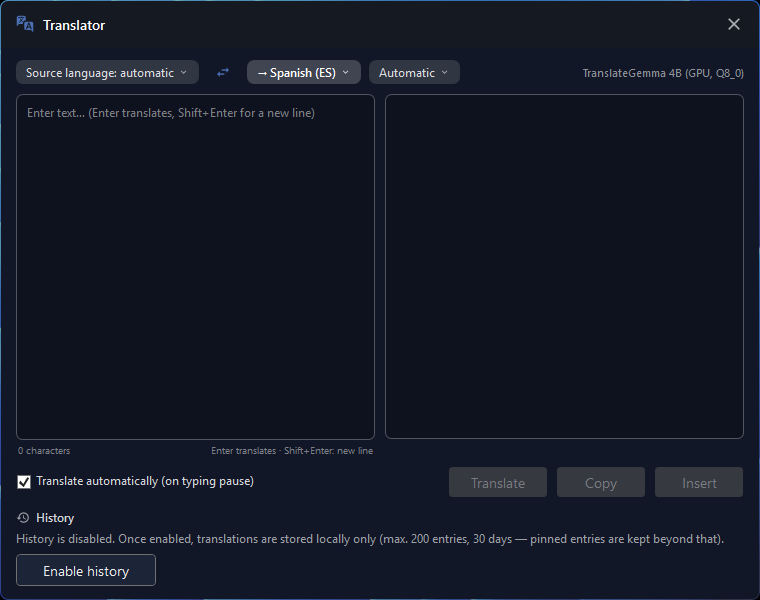
Long texts are translated section by section. Finished sections appear right away while the next ones are still running. Where the target language distinguishes formal and informal address, as French or Spanish do, you set it or let Celerando choose.
Which languages work in an image
The first step decides: Celerando can only translate what text recognition can read. Text recognition knows 14 languages, the translator 19. So you can translate text in an image in these languages:
- Included right away: German, English, French, Spanish, Italian, Dutch, Polish, Portuguese
- Downloadable with one click (a model of a few megabytes per language): Danish, Swedish, Finnish, Norwegian, Greek, Russian
Several languages can be active at once, so a German-English document is recognized in one pass. Celerando does not recognize Chinese, Japanese, Arabic or other scripts. Czech, Hungarian, Romanian, Turkish and Ukrainian are also out: the translator handles them, but text recognition can’t read them. For those images you need a different tool, such as an online service.
What each edition includes
- Free (no cost, no time limit): the translator with two languages: the language of the Celerando interface and English. With the interface in English, the free pair is English and German. Text recognition is not included in Free.
- Pro (€36 one-time): text recognition in all 14 languages, the translator with all 19 languages in every direction, and GPU acceleration with a dedicated graphics card.
You can try every feature free for 14 days; after that Celerando keeps running as Free. The overview is on Editions and prices.
Free and still offline works on Windows 11 with two pieces: the Snipping Tool recognizes text in a snip with the Text actions button, locally on your device according to Microsoft. Copy all text puts it on the clipboard, and Celerando’s free translator translates it, between English and German with an English interface. For Spanish, French or any other pair you need Pro.
What offline means here
Text recognition and translation make no connection; with the eight built-in recognition languages you can test that in airplane mode. Celerando only goes online for the downloads you choose (models, additional languages, optionally the CUDA runtime), the update check, license activation including the query of occupied seats, a one-time installation ping on the very first launch, and addresses you enter yourself (web app tiles load the site’s icon, the connections tile checks your servers). Images and texts are never part of that. Translation history is off by default; if you turn it on, it is stored as a file in your user profile.
Translate a photo from your phone
If the text is in a photo on your phone, get it onto the PC first. Celerando’s QuickShare sends photos to the computer over Wi-Fi: scan a QR code, no app and no cloud. QuickShare transfers images and files from Pro; Free shares text only. Other ways are in the guide Transfer photos from your phone to your PC.
Then open the photo on the PC and choose the Photo / camera profile for text recognition. It is meant for photographed pages with uneven light.
When the translation is wrong
The mistake is usually in the first step: if a word is misread, every translator turns it into nonsense. So look at the recognized text before you translate it.
- Gibberish or missing words: pick the right profile. Screenshot is for screenshots, Photo / camera for photographed pages, Scan / document for PDF pages and paper. In the manual Pro profile you set the six image preparation stages yourself.
- Tiny type: zoom in on the image before you draw the frame. The Screenshot and Scan / document profiles also enlarge the image 1.5× before recognition, the Pro profile up to 3×.
- Missing accents: check that the language of the image is active in text recognition. The default selection is German and English; for a French text, add French.
- A very poor original: a page a human can barely decipher will not become clean text, even with image preparation. A better photo or a new scan is the only fix.
- No “Text actions” in Snipping Tool: Microsoft describes Text actions only for Windows 11. On Windows 10 you need a different tool for recognition.
- The translation reads awkwardly: a local model is smaller than the big cloud services. For everyday text such as notices, forms, emails and notes the quality is good enough to work with; with literary or very long texts you will notice the difference.
Google Translate or Celerando: comparison
| Google Translate (Images tab) | Celerando | |
|---|---|---|
| Where recognition and translation happen | at Google, online | on your PC |
| Internet required | yes, for every image | no, after the one-time model download |
| What you need | an image file to upload | just the open image, in any program |
| Result | translation in the image, copy text, download image | text on the clipboard, copy the translation or insert it into the last window you used |
| Languages | no list on the help page | recognition in 14 languages, translation in 19 |
| Image preparation | not described on the help page | three profiles, six adjustable stages, upscaling |
| Cost | free | translator in Free (2 languages), text recognition from Pro (€36 one-time) |
Windows 11’s Snipping Tool also recognizes text locally with Text actions, but it does not translate it. It covers the first step if you use a different translator.
Frequently asked questions
How do I translate text in an image on a PC?
The fastest way is Google Translate in the browser: Images tab, choose the languages, Browse your computer, pick the image. If the image must not be uploaded, recognize the text locally, for example with Celerando (Ctrl+Alt+T), and translate it with the translator on your PC.
Can I translate a screenshot without saving it?
Yes, if text recognition works on the screen instead of a file. In Celerando you draw the frame straight over the visible text; no saved screenshot is needed. Google Translate, by contrast, needs an image file.
Can I do it without internet?
Yes, if both steps run locally. Celerando recognizes and translates without a connection once the translation model has been downloaded. According to Microsoft, Snipping Tool also recognizes text locally.
Is it free?
Google Translate is free. In Celerando the translator is part of Free (your interface language and English, or English and German with an English interface); text recognition comes with Pro for €36 one-time.
Can Celerando translate Chinese, Japanese or Arabic text from an image?
No. Text recognition covers 14 European languages in Latin, Greek and Cyrillic (Russian) script. It does not recognize Chinese, Japanese or Arabic characters.
How do I translate a scanned PDF?
A scanned PDF is an image, so its text can’t be selected. Open it, draw a frame over the page with Ctrl+Alt+T and translate the recognized text. Whole PDFs, with Google Translate, in Word or without an upload, are covered in the guide How to translate a PDF. Why text can’t be copied from some PDFs is explained in the guide Can’t copy text from a PDF. More on text recognition is on the page Text recognition (OCR).
Is the formatting kept?
Not with Celerando: text recognition returns plain text, and the translator translates that text. Google Translate, by contrast, shows the translation in the image and lets you download the translated image.
Sources
As of October 30, 2026.
- Google Translate Help: Translate images (Computer) (Images tab, Browse your computer, options after translating, note on small and stylized text)
- Microsoft Support: Use Snipping Tool to capture screenshots (Text actions, Copy all text, local text recognition, Windows 11 section)
More guides
- How to translate a PDF: Google, Word, or without uploadingHow to translate a PDF with Google Translate or in Word, what to do with scanned pages and large files, and how to translate it offline on your PC.
- How to translate a Word document, even without uploading itHow to translate a Word document with Word's built-in Translator, what to do when Translate is grayed out, and how to translate it offline on your PC.
- Google Translate offline on PC: does it work?How to download Google Translate languages for offline use, why that doesn't work on a PC, and how to translate on Windows without internet.