How to translate a PDF: Google, Word, or without uploading
How to translate a PDF with Google Translate or in Word, what to do with scanned pages and large files, and how to translate it offline on your PC.
The quickest way to translate a PDF is Google Translate: in your browser, click Documents at the top, choose the languages, click Browse your computer, select the file, click Translate and then Download translation. According to Google’s help, it accepts PDFs up to 10 MB and 300 pages. The second way is Word: open the PDF in Word, Word converts it into an editable document, and you translate that with Review › Translate › Translate Document.
Both ways share the same limits. The file or its text goes to an online service, nothing works without an internet connection, and Google does not translate scanned pages at all: their text shows up in the result, but in the original language. For a lease, a medical report or an expert opinion, uploading the file is often not an option either. That is where Celerando comes in: it translates the text of the PDF on your PC, scans included. This guide walks through all three ways and what to do when one of them fails.
How to translate a PDF with Google Translate
These are Google’s steps on a computer:
- In your browser, go to Google Translate.
- At the top, click Documents.
- Choose the languages to translate from and to. Detect language lets Google set the original language for you.
- Click Browse your computer and select the PDF.
- Click Translate and wait for the document to finish translating.
- Click Download translation.
What Google says about it:
- Up to 10 MB and 300 pages. For more or larger documents, Google points to its Cloud Translation API.
- Not on your phone. Document translation isn’t available on smaller screens or mobile devices.
- Scans stay untranslated. Text in images and on scanned PDF pages appears in the output document, but it isn’t translated.
How to translate a PDF in Word
Word can convert a PDF into a Word document, and Word can translate a Word document:
- Open Word, select File › Open and choose the PDF. According to Microsoft, Word makes a copy, converts it and tries to match the layout of the original. The original PDF stays as it is.
- In the converted copy, select Review › Translate › Translate Document.
- Choose the target language and select Translate. Word opens a translated copy in a separate window.
Microsoft says Translator in Word needs an internet connection and connected experiences turned on, and it is available to Microsoft 365 subscribers and Office 2021. If Translate is grayed out, see the guide How to translate a Word document.
Microsoft also says conversion works best with files that are mostly text, such as business, legal or scientific documents. If a page contains mostly charts or other graphics, the whole page may show up as an image, and then its text can’t be edited, so it can’t be translated either. Tables with cell spacing, footnotes that span more than one page, endnotes and PDF comments are on Microsoft’s list of elements that don’t convert well.
When translating a PDF doesn’t work
| Problem | Cause | What helps |
|---|---|---|
| Google rejects the file | larger than 10 MB or more than 300 pages | split the PDF, or translate only the pages you need |
| Some text stays in the original language | the page is a scan or an image | get the text with text recognition (OCR), see below |
| Word shows a page as a picture | the page is graphics or a scan | as above: get the text with OCR |
| Translate is grayed out in Word | no internet, connected experiences off, or an older Office version | guide How to translate a Word document |
| You can’t select the text, or it pastes as gibberish | scan, copy protection or broken font encoding | guide Can’t copy text from a PDF? |
| No Documents tab on your phone | Google offers document translation on computers only | translate on your PC |
The problem with confidential PDFs
For a user manual or a product catalog, both ways are convenient. But many PDFs that need translating are exactly the ones you don’t hand over: contracts, letters from government agencies, medical results, job applications, quotes with prices. With Google Translate you select the whole file, and it is translated at Google. Word sends the text to Microsoft’s translation service, which is why many companies turn connected experiences off.
Other online translators don’t change that. The file just ends up with a different service.
How to translate a PDF offline: with Celerando
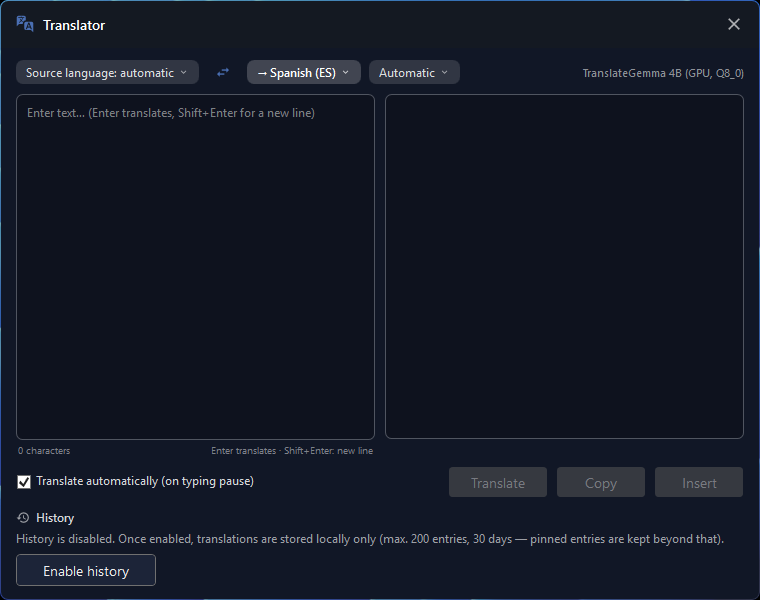
Celerando is a Windows app with a translator that runs entirely on your PC. The TranslateGemma model is stored on your drive after a one-time download; from then on Celerando translates without an internet connection, and the text never leaves your computer.
So you know what to expect: Celerando translates text, not files. You don’t upload a PDF; you copy its text into the translator. The result is text without the PDF’s layout: columns, tables and images don’t come along. If you need a finished, typeset translated PDF, a file translator is the better fit. If you want to understand what the document says or keep working with the text, this gets you there without an upload.
Step by step: a PDF with selectable text
- Install Celerando. The installer is signed and needs no admin rights and no account.
- Set up the translator once. Celerando downloads the model, about 2.5 GB in the free edition. This happens only once.
- Open the PDF (in your browser, Acrobat Reader or any other viewer) and copy the text section by section: a heading with the paragraphs below it, or everything with Ctrl+A and Ctrl+C for short documents.
- Paste it into the translator. Celerando detects the source language; you pick the target language (in Free, the free language pair applies; see below) and, where the language distinguishes formal and informal address, the form of address.
- Wait until the translation is finished. Longer texts are translated section by section and reassembled; the translation appears word by word while the model writes.
- Use it. One click copies the translation to your clipboard or inserts it straight into the window you were last writing in, for example a new Word document.
A tip for PDFs with columns: select each column on its own. If you select across the page, some viewers interleave the lines of both columns, and the copied text stops making sense before it is even translated.
How to translate a scanned PDF
If you can’t select the text, the page is an image. Those are exactly the pages Google doesn’t translate. From Pro, Celerando gets the text straight from your screen with text recognition (OCR):
- Open the scan in any viewer and zoom in until the text is easy to read.
- Press Ctrl+Alt+T and drag a frame around the section. The recognized text is in your clipboard right away.
- Paste it into the translator and translate it as above.
Text recognition runs on your PC too, supports 14 languages and prepares poor scans in six stages. The guide How to translate text in an image shows the same flow with images and photos; more on text recognition is on the page Copy text from images and PDFs.
What each edition can translate
- Free (no cost, forever): translation between the language of the Celerando interface and English, in both directions. When the interface is English, the free pair is English ↔ German. That is enough for PDFs with selectable text in that pair.
- Pro (€36 one-time): all 19 languages in every direction, text recognition for scanned PDFs, GPU acceleration and the larger TranslateGemma 12B model for graphics cards with 12 GB or more.
You can try every feature free for 14 days; after that, Celerando keeps running as Free. The overview is on Editions and prices.
What offline means here
Translation and text recognition open no connection; try it in flight mode. Celerando contacts the internet only for the downloads you select (models, additional languages, optionally the CUDA runtime), the update check, license activation including the query of occupied seats, a one-time installation ping on the very first launch, and addresses you enter yourself (web app tiles load the site’s icon, the connections tile checks your servers). Translated text is never part of it.
On quality: a model that runs on your PC is smaller than the models behind the big cloud services. You will notice the difference with literary or stylistically demanding text and with less common languages. For contracts, official letters, manuals and technical text, it is good enough to understand the document and keep working.
Google Translate or Celerando: the comparison
| Google Translate (Documents) | Celerando | |
|---|---|---|
| Where it translates | at Google | on your PC |
| Internet while translating | required | no, after the one-time model download |
| What you hand over | the whole PDF file | the copied text |
| Layout | result as a document to download | text only, no layout |
| Scanned pages | not translated, per Google | from Pro, with text recognition |
| Size | up to 10 MB and 300 pages | no file; longer texts section by section |
| On your phone | not available | Windows app, not for phones |
| Languages | those of Google Translate | Free: interface language ↔ English; from Pro 19 languages |
| Cost | free | Free at no cost; Pro €36 one-time |
Word sits in between: it translates the converted PDF as a Word document and opens the result as a copy, but sends the text to Microsoft’s service for it, needs Microsoft 365 or Office 2021, and fails on pages Word only brings in as a picture.
Frequently asked questions
How can I translate a PDF for free?
In Google Translate under Documents, up to 10 MB and 300 pages; the file goes to Google for that. Without an upload, Celerando’s free edition translates between your interface language and English (with an English interface, English and German) at no cost; you copy the text from the PDF into the translator.
How do I translate a PDF to English?
With Google Translate: set the original language (or Detect language), choose English as the target and select the file. Offline, Celerando translates into English from your interface language in the free edition, and from all 19 languages from Pro.
Why doesn’t Google translate my whole PDF?
The untranslated parts are usually scans or images. Google’s help says text in images and on scanned PDF pages appears in the output document but isn’t translated. Get that text out with text recognition, then translate it.
Can I translate a PDF without uploading it?
Yes, if the translation model is on your PC. Celerando translates the text locally; you open the file in your usual viewer, and none of it goes to the internet.
Does the PDF keep its layout?
Google gives you a document to download, and Word gives you a converted copy that, according to Microsoft, might not look exactly like the PDF. Celerando gives you the translated text only; you put layout, tables and images back yourself if you need them.
Can I translate a PDF on my phone?
Google says document translation isn’t available on mobile. Celerando is a Windows app as well. The simplest way is to get the PDF onto your PC; the guide How to transfer photos from your phone to your PC shows how, without a cable.
Which languages does Celerando translate?
Nineteen: German, English, Spanish, French, Italian, Dutch, Portuguese, Polish, Czech, Danish, Swedish, Norwegian (Bokmål), Finnish, Hungarian, Romanian, Greek, Turkish, Russian and Ukrainian. Free covers the interface language and English (English and German when the interface is English); Pro covers all 19.
Sources
As of November 15, 2026.
- Google Translate Help: Translate documents & websites (steps, formats, 10 MB, 300 pages, not on mobile, text in images and scanned PDF pages isn’t translated; accessed November 15, 2026)
- Microsoft Support: Opening PDFs in Word (copy and conversion, works best with files that are mostly text, pages as an image, elements that don’t convert well; accessed November 15, 2026)
- Microsoft Support: Translate text into a different language (Translate Document, Microsoft 365 and Office 2021, internet and connected experiences; accessed November 12, 2026)
- Microsoft Support: Insert scanned text or images into Word (opening a PDF via File › Open; accessed November 13, 2026)
More guides
- How to translate a Word document, even without uploading itHow to translate a Word document with Word's built-in Translator, what to do when Translate is grayed out, and how to translate it offline on your PC.
- Google Translate offline on PC: does it work?How to download Google Translate languages for offline use, why that doesn't work on a PC, and how to translate on Windows without internet.
- How to translate an email in Outlook, Gmail and offlineHow to translate emails in Outlook and Gmail, where the built-in translators fall short, and how to translate an email and your reply offline on your PC.