Outlook voice to text: dictate emails instead of typing
Where Dictate is in Outlook, why the button is missing or grayed out, and how to dictate emails without a subscription and without internet.
Outlook’s voice to text is the Dictate button on the Message tab: start a new email or a reply, click into the message body, select Dictate and start talking. That works the same way in classic Outlook, the new Outlook for Windows and Outlook on the web. The feature has conditions, though: it needs a reliable internet connection because your speech is sent to Microsoft, in classic Outlook Microsoft says you have to be signed in to Microsoft 365, and on work accounts your admin can turn it off. If you aren’t signed in or the feature is turned off, the button is missing or grayed out; on a slow connection, Microsoft says words go missing.
Without a subscription, offline, or if your voice shouldn’t leave the PC, you can dictate with Celerando: the app types the text wherever your cursor is, so it works in any version of Outlook. The recognition runs on your PC. This guide shows both ways.
What Outlook needs for dictation
Microsoft lists these conditions on its support page for dictating in Outlook:
- Signed in to Microsoft 365, depending on your Outlook. In classic Outlook, Microsoft says you select Dictate while signed in to Microsoft 365. For Outlook for Mac it says explicitly: “The dictation feature is only available to Microsoft 365 subscribers.” For the new Outlook and Outlook on the web, the support page names no such condition. Its “Applies to” list also includes Outlook.com and Outlook 2024.
- Internet. Microsoft asks for a microphone and a reliable internet connection. Your speech is sent to Microsoft to turn it into text; according to Microsoft, the service doesn’t store your audio data or the transcribed text.
- Connected experiences. Microsoft lists dictation among the “connected experiences that analyze your content”. If those are turned off, the command is grayed out or Outlook shows an error message. With a work or school account, your organization’s admin decides this, not you.
How to dictate in Outlook with the built-in feature
In classic Outlook and the new Outlook for Windows, the steps are the same (in classic Outlook while signed in to Microsoft 365):
- Start a new email or reply to one.
- Click into the message body.
- On the Message tab, select Dictate.
- Wait for the button to turn on, then speak. The text appears at the cursor.
The gear icon in the dictation toolbar lets you set the Spoken Language, the Microphone, Auto Punctuation and a Profanity filter. Outlook also has its own voice commands for punctuation; the list is on Microsoft’s support page (see Sources).
Dictate button missing or grayed out: the causes
Work through these cases in order:
| What you see | Cause | What helps |
|---|---|---|
| No “Dictate” button in classic Outlook | not signed in to Microsoft 365, or signed in with the wrong account (in Outlook for Mac: no subscription) | sign in to Outlook with your Microsoft 365 account; for the new Outlook and Outlook on the web, Microsoft doesn’t name this condition; otherwise: see the alternative below |
| Button missing or grayed out although you’re signed in | connected experiences are turned off; on work accounts by policy | with a personal Microsoft account, turn them on: in classic Outlook under File › Office Account › Account Privacy › Manage Settings, in new Outlook under Settings › General › Privacy and data › Privacy settings; on a work account, ask IT |
| ”Another app is using your mic” | another app or web page is using the microphone | close it and try again |
| ”Mic issue”, “Can’t detect mic” or “Can’t access mic” | the microphone isn’t plugged in or detected | check the connection, test the microphone, check the microphone settings in Control Panel |
| No text appears while you speak | the microphone is muted or too quiet | unmute it, raise the input level, move somewhere quieter or use a headset |
| Missed or wrong words | slow connection, background noise | fast and reliable internet, less background noise, speak more deliberately |
If classic Outlook isn’t signed in to Microsoft 365, no settings menu fixes the first row. Microsoft doesn’t say whether a one-time purchase such as Outlook 2024 is enough, although the support page applies to that version. Otherwise that leaves the new Outlook, for which Microsoft names no subscription condition, or a dictation program that works independently of Outlook.
Dictate in Outlook without Microsoft 365: with Celerando
Celerando is a Windows app that turns speech into text on your PC and types it into whatever program your cursor is in. That’s why it doesn’t matter which Outlook you have, whether you have a subscription or whether connected experiences are on: classic Outlook, new Outlook, Outlook in the browser or a different email program altogether, it all works the same.
- Download and install Celerando. The installer is signed and needs neither admin rights nor an account.
- Turn on voice input. Celerando downloads the recommended Whisper Small model once (466 MB). After that, it recognizes your speech without internet.
- Open an email in Outlook and click into the message body, just as you would to type.
- Press Ctrl+Shift+Space, speak, press it again. That’s the default dictation hotkey; you can change it.
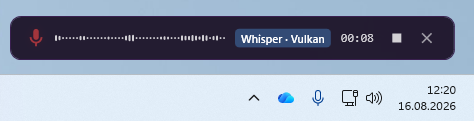
By default Celerando inserts the text via the clipboard and Ctrl+V. If Outlook runs in a remote desktop session, there’s a mode that types character by character.
What the editions offer for dictation:
- Free (no cost, forever): Whisper Small or Base in your system language, up to 30 seconds per recording. That’s enough for a short reply; dictate longer emails one paragraph at a time.
- Pro (€36 one-time): 26 well-recognized languages, unlimited recording length, Personal Dictionary for names and technical terms, rule-based post-processing.
- Business (€63 one-time): adds Parakeet with automatic language detection, push-to-talk, streaming (the text appears while you speak) and Smart Modes: a local language model tidies up the dictated text, removes filler words, adds punctuation, softens the tone or phrases it as an email. With a graphics card with 8 GB of graphics memory or more that usually takes under a second; without one, the CPU version of the model needs a few seconds per sentence.
No subscription: you buy Pro and Business once. You can try every feature free for 14 days; after that Celerando keeps running as Free. The overview is on Editions and pricing.
What Celerando doesn’t do: control Outlook by voice. Adding recipients, writing the subject line, sending or formatting is still done with mouse and keyboard. Celerando delivers the text, Outlook stays your email program.
Does it really work offline?
Yes. After the one-time model download, speech recognition opens no connection; try it in airplane mode and write the email while Outlook is offline. Celerando contacts the internet only for the downloads you choose (models, additional languages, optionally the CUDA runtime), the update check, license activation including the query of occupied seats, a one-time installation ping on the very first launch, and addresses you enter yourself (web app tiles load the site’s icon, the connections tile checks your servers). Recordings and text are never part of it.
For law firms, medical practices and public authorities, that’s often the actual reason: a dictation with client or patient data isn’t recognized in the cloud; recognition runs on your PC. What Outlook does with the inserted text is a separate question: depending on the account, Outlook saves drafts to your mailbox on the mail server while you write, and the sent email goes through that server anyway. That depends on your mailbox, not on Celerando.
Outlook Dictate or Celerando: the comparison
| Outlook “Dictate” | Celerando | |
|---|---|---|
| Cost | included in Outlook at no extra charge | Free at no cost; Pro €36, Business €63 one-time |
| Outlook versions | new Outlook and Outlook on the web; classic Outlook while signed in to Microsoft 365, Outlook for Mac with a subscription only | any version, even without signing in, and any other email program |
| Internet for recognition | always required | no, offline after the one-time model download; the app itself connects for the update check, license activation including the query of occupied seats, a one-time installation ping, and the downloads and addresses you choose (list above) |
| Where recognition runs | at Microsoft | on your PC |
| Can be turned off by your admin | yes, through connected experiences | not through the Office settings; Celerando is a separate program |
| Your own terms | – | Personal Dictionary (Pro and up) |
| Rephrase the text as an email | – | Smart Modes (Business and up) |
| Voice commands for punctuation | yes | no |
Windows also has its own voice typing, Win+H, which types into Outlook without Microsoft 365. It also recognizes speech on Microsoft’s servers, though, and always needs internet. How to set it up and where it falls short is in the guide Voice typing in Windows 11. For Word, Microsoft names a Microsoft 365 subscription as a condition; see How to dictate in Word.
Tips for dictated emails
- Content first, form later. Dictate the email in one go and correct it afterward. In Celerando Free, one paragraph per recording fits the 30-second limit.
- Greeting and sign-off from a template. They’re the same in almost every email; dictation pays off for the content. Celerando keeps fixed snippets in a “text templates” tile (already in Free).
- Names into the Personal Dictionary. Customer names, product names and abbreviations are then recognized more reliably (Pro and up).
- Need the email in another language? Dictate it in yours and translate it afterward; how that works in Outlook and offline is in the guide How to translate an email.
Which microphone works well and how to speak so there’s little to correct is in the guide Speech to text on Windows 11.
Frequently asked questions
Where is Dictate in Outlook?
On the Message tab, once you’ve started a new email or a reply and clicked into the message body. Microsoft’s instructions always start from a new email or a reply.
Why is Dictate missing in my Outlook?
In classic Outlook, usually because you aren’t signed in to Microsoft 365, or with the wrong account. On work accounts, your admin may have turned dictation off through connected experiences.
Does Outlook dictation work without internet?
No. Microsoft requires a reliable internet connection because the recognition runs at Microsoft. With Celerando it does: after the one-time download of the speech model, recognition runs offline.
Is my voice sent over the internet when I dictate in Outlook?
Yes. According to Microsoft, your speech is sent to Microsoft and used only to provide you with text results, and the service stores neither audio nor text. Celerando records and recognizes on your PC.
Can I dictate in Outlook without Microsoft 365?
In classic Outlook, Microsoft requires you to be signed in to Microsoft 365 for the built-in feature; the support page doesn’t say whether a one-time purchase such as Outlook 2024 is enough. For the new Outlook and Outlook on the web, Microsoft doesn’t name this condition. In any version of Outlook, you can use a program that types independently of Outlook, such as Celerando (offline) or Windows voice typing with Win+H (needs internet).
Which languages can I dictate in?
In Celerando Free your system language, from Pro 26 well-recognized languages, including English, German, Spanish, French, Italian, Polish and Turkish. More on the Dictation on Windows page.
Sources
As of October 29, 2026.
- Microsoft Support: Dictate your emails in Outlook (requirements per Outlook version, steps, settings, privacy, troubleshooting, voice commands)
- Microsoft Learn: Connected experiences in Office (dictation as a connected experience, turning it off as a user or admin)
- Microsoft Support: Access your Account Privacy Settings (path in classic Outlook via Office Account, in new Outlook via Privacy and data)
- Microsoft Support: How do I access my privacy settings in Outlook? (path in new Outlook for Windows)
More guides
- ChatGPT dictation: use voice to text on PC, fix it, alternativeHow to dictate into ChatGPT with the microphone icon, what to check when it stops working, and how to speak prompts on your PC without uploading the recording.
- How to dictate in Word, even without Microsoft 365Dictate button missing or grayed out in Word? What Word's dictation needs, what to do with Office 2016/2019, and how to dictate offline without a subscription.
- How to Use Voice Typing in Google Docs, and Fix ItStart voice typing in Google Docs, fix a missing menu or a silent microphone, and dictate into Docs from any browser with speech recognized on your PC.