Speech to text on Windows 11: dictate instead of typing
Speech to text on Windows 11 and 10: what you need, how to dictate into any program with Celerando, which microphone works best and how to dictate well.
If you write a lot, you probably think faster than your fingers can type. Speech to text on a PC means: you press a key, speak, and the text appears in the program you’re working in, in an email in Outlook, a document in Word or a form in your browser. You need three things for that: a microphone, speech recognition, and a few habits when you speak.
This guide covers all three, with Celerando: a Windows app that recognizes speech directly on your PC, without your voice going to the internet. The basic version is free.
What you need for speech to text on a PC
- A microphone. A headset is ideal; a USB desk microphone or the laptop’s built-in microphone will do in a quiet room. More on that below.
- Speech recognition that types into any program. It turns your speech into text and inserts it where your cursor is. That’s exactly what Celerando does.
- An x86-64 PC with Windows 10 or 11. Celerando needs Windows 10 from build 19041 or Windows 11 and at least 4 GB of RAM, and for speech recognition a CPU with AVX2 (Intel Core from 2013, AMD Ryzen). Small Whisper models don’t require a dedicated graphics card.
Windows also has its own voice typing behind Win+H. It sends your speech to Microsoft’s servers for recognition, only works online and can’t learn your own words. How to set it up, and where it falls short, is in the guide Voice typing in Windows 11: turn it on, fix it, know its limits.
Ready in five minutes: speech to text with Celerando
- Download and install Celerando. The installer is signed and needs no admin rights and no account.
- Enable voice input. Celerando downloads the recommended model, Whisper Small (466 MB), once. After that, recognition works without internet.
- Click into the text box where the text should go, for example a new email.
- Press Ctrl+Shift+Space, speak, then press it again. This is the default shortcut. If you’ve changed it, use your own dictation hotkey. The text is inserted where your cursor is.
From the Pro edition, a small overlay with waveform, engine and duration appears above the taskbar while you speak. It never takes the focus away from the program you’re writing in:
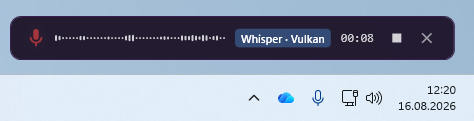
By default, Celerando inserts the text via the clipboard. For remote desktop sessions and terminals, there’s a mode that types character by character.
In the free edition, Celerando recognizes your system language, up to 30 seconds per recording. That’s enough for emails and notes if you dictate in sections.
Which microphone for dictation?
Recognition can only be as good as the recording. Three typical options:
| Microphone | Good for | Watch out for |
|---|---|---|
| Headset with a boom mic | long dictation, open-plan offices | mic to the side of your mouth, always at the same distance |
| USB desk microphone | a quiet private office | place it close enough, avoid keyboard noise |
| Built-in laptop microphone | short notes | picks up fan noise, typing and room echo |
Many Bluetooth headsets drop in sound quality as soon as the microphone is active, because Windows switches to the hands-free profile. A wired or USB headset often gives cleaner recordings.
Say a few test sentences and read the result before you dictate a long text. If recognition is off, it’s often the microphone or background noise, not the software.
How to dictate well: eight tips
- Think first, then speak. Shape the sentence in your head and say it in one go. Every speech recognizer handles choppy fragments worse.
- Speak at your normal pace, and clearly. No slower than usual, but without mumbling.
- Dictate in sections. One paragraph per recording is easier to check than a whole page. In the free edition, that fits the 30-second limit anyway.
- Pause briefly where a sentence ends. That helps recognition split sentences cleanly.
- Add names and technical terms once. In the Personal Dictionary (from Pro), you enter proper names, company names and jargon, along with the wrong spellings recognition would otherwise produce. Both models get the terms during recognition: Whisper as a hint up front, Parakeet (from Business) as hotwords. Celerando then replaces the wrong variants you’ve entered with the intended spelling.
- Keep it quiet. Window closed, music off, fans as quiet as possible. Background noise costs more accuracy than a mediocre microphone.
- Dictate first, correct afterwards. Read the section once it’s there and fix it with the keyboard. That’s faster than stopping in the middle of a sentence.
- Check where your cursor is. The text lands there. If a dictation ever goes into the wrong window, the optional transcription history (from Pro) helps: it stores text and recording in your user profile and is off by default.
From dictation to finished text
Celerando can post-process the recognized text. All of it runs locally on your PC and can be turned off:
- Numbers (all editions): in German dictation, spoken numbers become digits: amounts, times, decimals and version numbers. On by default.
- Rules (from Pro): spoken symbols become characters (“euro” → €), abbreviations are expanded or shortened, and you can add your own replacements with regular expressions.
- Smart Modes (Business): a local language model removes filler words, adds punctuation, softens the tone or phrases the text as an email. Celerando uses Gemma 3 4B for this: usually under a second with a graphics card with 8 GB of graphics memory or more, a few seconds per sentence in the CPU version without one.
Recording and text input
Business adds more ways to control recording and insert text:
- Streaming (Business): the text appears piece by piece in the target program while you’re still speaking. If a Smart Mode is active, Celerando turns streaming off for that recording, and the text appears when you stop recording.
- Push-to-talk (Business): hold the dictation hotkey to speak and release it to stop recording. Without streaming, the text is inserted afterwards.
What does speech to text on a PC cost?
| Celerando Free | Celerando Pro | Celerando Business | |
|---|---|---|---|
| Price | free, forever | €36 one-time | €63 one-time |
| Languages | your system language | 26 well-recognized languages | adds Parakeet, language detected automatically |
| Length per recording | 30 seconds | unlimited | unlimited |
| Personal Dictionary, rules | – | yes | yes |
| Push-to-talk, streaming, Smart Modes | – | – | yes |
No subscription: you buy Pro and Business once. You can try all features free for 14 days; after that, Celerando keeps running as Free. All editions are compared on Editions and prices.
Honestly: where local speech recognition reaches its limits
The local models available in Celerando can fall behind powerful cloud services on difficult recordings. Rare technical terms, strong accents and background noise can require additional corrections; for technical terms, the Personal Dictionary helps. For clearly spoken emails, notes, minutes and reports, recognition works well. Accuracy depends on the model, language and recording quality, so try it with texts you typically write.
Larger models can improve recognition but need more computing power. Small Whisper models run on the CPU; for the large one, a graphics card pays off. Which hardware suits which model is shown on Voice input requirements, with a self-check.
Who benefits most from dictation
- People who write all day: emails, minutes, documentation, notes.
- When your hands won’t cooperate: with tendinitis or RSI, dictation is often what makes it possible to keep working.
- People who feel more confident speaking a foreign language than writing it.
- People who dictate confidential material: law firms, medical practices and HR departments that don’t want to, or may not, hand recordings to a cloud service. Celerando processes recordings and speech recognition locally. What happens to the inserted text afterwards depends on the target program.
Frequently asked questions
Which programs can I dictate into?
Any program that accepts text input: Outlook, Word, browsers, Teams, Slack, editors and forms. Celerando inserts the text where your cursor is. In Word this works without a Microsoft 365 subscription, too; Word’s own Dictate feature and what it requires are covered in the guide How to dictate in Word.
Is there free speech to text software for Windows?
Yes. Windows voice typing (Win+H) is included but recognizes on Microsoft’s servers and needs internet. Voice access in Windows 11 works offline after downloading its language, but it’s designed mainly for controlling the PC by voice command. Celerando Free also recognizes on your PC, in your system language and for up to 30 seconds per recording. See the comparison in the Windows voice typing guide.
Does speech to text work without internet?
With Celerando, yes. You download the speech model once; after that, recognition opens no connection, which you can try in flight mode. Celerando only goes online for the downloads you choose yourself (models, additional languages, optionally the CUDA runtime), the update check, license activation including the query of occupied seats, a one-time installation ping on the very first launch, and addresses you enter yourself (web app tiles load the site’s icon, the connections tile checks your servers). Recordings and text are never part of it.
Do I need a graphics card?
No. Whisper Base and Small run on the CPU, even on an older office PC. A graphics card with 2 GB of graphics memory or more makes the more accurate Turbo model practical; GPU acceleration is included from Pro. Speech recognition needs a CPU with AVX2 (Intel Core from 2013, AMD Ryzen).
How long can a dictation be?
30 seconds per recording in the free edition, unlimited from Pro.
Does the text appear while I’m speaking?
That’s streaming mode, included in Business. In Free and Pro, the text appears as soon as you stop recording.
Which languages does Celerando recognize?
Free: your system language. From Pro: 26 well-recognized languages, including English, Spanish, French, German, Italian, Polish and Turkish. In Business, Celerando detects the spoken language automatically, and Parakeet recognizes 17 European languages well.
How is this different from Windows voice typing?
Windows voice typing recognizes on Microsoft’s servers and always needs internet, and it can’t learn your own words. Celerando recognizes on your PC, works offline after the model download and knows your terms through the Personal Dictionary. The full comparison is on Dictation on Windows; setting up voice typing is covered in the guide Voice typing in Windows 11.
Sources
As of October 2026.
More guides
- ChatGPT dictation: use voice to text on PC, fix it, alternativeHow to dictate into ChatGPT with the microphone icon, what to check when it stops working, and how to speak prompts on your PC without uploading the recording.
- How to dictate in Word, even without Microsoft 365Dictate button missing or grayed out in Word? What Word's dictation needs, what to do with Office 2016/2019, and how to dictate offline without a subscription.
- How to Use Voice Typing in Google Docs, and Fix ItStart voice typing in Google Docs, fix a missing menu or a silent microphone, and dictate into Docs from any browser with speech recognized on your PC.